The Best Free Alternative to ManyCam
MiniCam turns your webcam into a clean virtual camera for Teams, Zoom, OBS and any app that lists cameras. Blur the room, put a photo or video behind you, or replace the camera with a video entirely. Free, offline, and gone when you close it.
Why MiniCam Exists
For years ManyCam sold lifetime licences. People paid once, on the understanding that the software was theirs. Then ManyCam stopped honouring those licences and moved everyone to a subscription of roughly 100 dollars a year. Pay again, every year, for the features you had already bought, or lose them.
MiniCam is our answer. It does the job most ManyCam users actually needed, a tidy webcam picture with the room blurred or replaced, and it does it for free, for good. There is no licence to revoke because there is no licence server. There is no subscription to raise because there is no account. If that is all you ever wanted from a virtual camera, this is it.
What is MiniCam?
MiniCam is a small Windows application that sits between your webcam and your video calls. It takes the camera picture, finds you in it, and hands the calling app a new picture in which everything around you is blurred, swapped for a photo or a video, or painted a single colour. To Teams, Zoom, OBS or a browser it is simply another camera called MiniCam Virtual Camera.
It can also stop using the webcam altogether and play a video file in its place, which makes it a pre-recorded stand-in, a looping placeholder or a presentation clip, depending on the file. Person detection runs on your own GPU or CPU, the app has no networking code, and nothing of it stays running when you close the window. One installer, one window, one purpose.
Features
Backgrounds
Blur the Room, or Replace It
MiniCam finds the person in the frame and treats everything else as background. Blur it with a strength you choose, put a photo behind you, play a video there, or settle for a flat colour. The replacement is prepared before it goes live, so the people on the call never see a half-switched frame or, worse, your actual room while a file loads.
- Blur with adjustable strength, from a soft hint to fully unrecognisable
- Photo backgrounds from JPEG or PNG, cropped to fill or fitted with margins
- Video backgrounds from H.264 MP4, looped, with pause and restart
- Solid colour when you want nothing at all behind you
- Fill or Fit for every background, plus a list of recently used files
- A failed file falls back to neutral grey, never to the raw camera
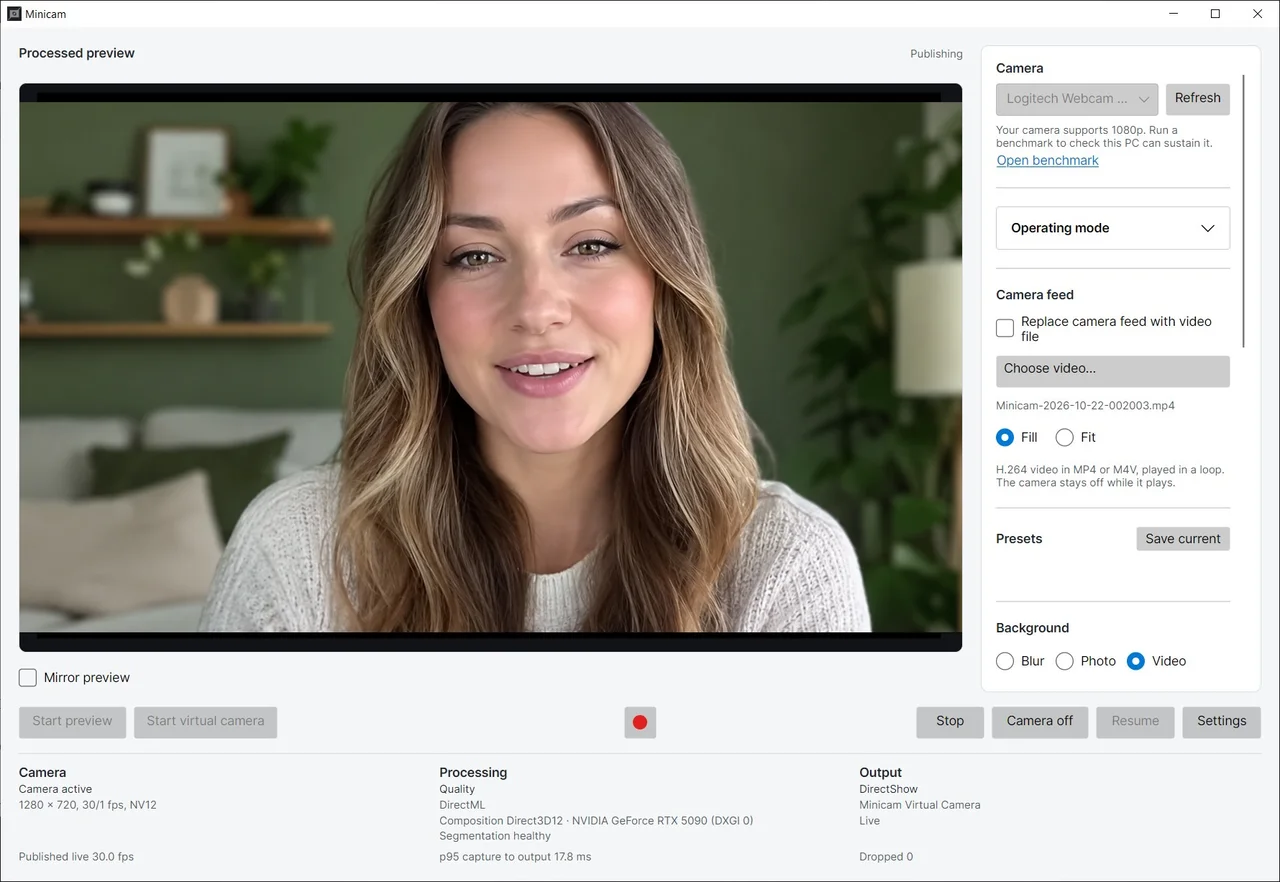
Video Instead of Camera
Send a Video Instead of Yourself
Tick one box and MiniCam stops using the webcam altogether. A video file of your choice plays in a loop as the whole picture, the camera is released and its light goes off. Pre-recorded introductions, a looping placeholder while you step away, a demo clip during a presentation: the calling app just sees a camera, and that camera is showing your file. Flip the box back and your real picture returns without anyone having to reconnect.
- Replace the camera feed with any H.264 MP4 or M4V file
- The webcam is closed and its light goes off while the video plays
- The file loops as the whole frame, with Fill or Fit scaling
- Switch between video and camera while the call is running
- Record your processed output to MP4 and reuse it as a feed later
Simple to Use
Three Clicks to a Better Camera
Pick your webcam, pick a background, press Start virtual camera. Then choose MiniCam Virtual Camera in Teams, Zoom, OBS or whatever you use, and you are done. Favourite setups can be saved as presets and switched from the tray menu or with a keyboard shortcut, even while another app has focus. The status strip tells you what the camera, the processing and the output are doing at every moment.
- One window: camera, background, framing and output in plain sight
- Start preview to check the picture before anyone else sees it
- Named presets for different rooms, lights or occasions
- Global shortcuts for Camera off, Resume and Next preset
- Optional tray icon with the same controls, so the window can stay out of the way
- Live status: frame rate, latency, which device is doing the work
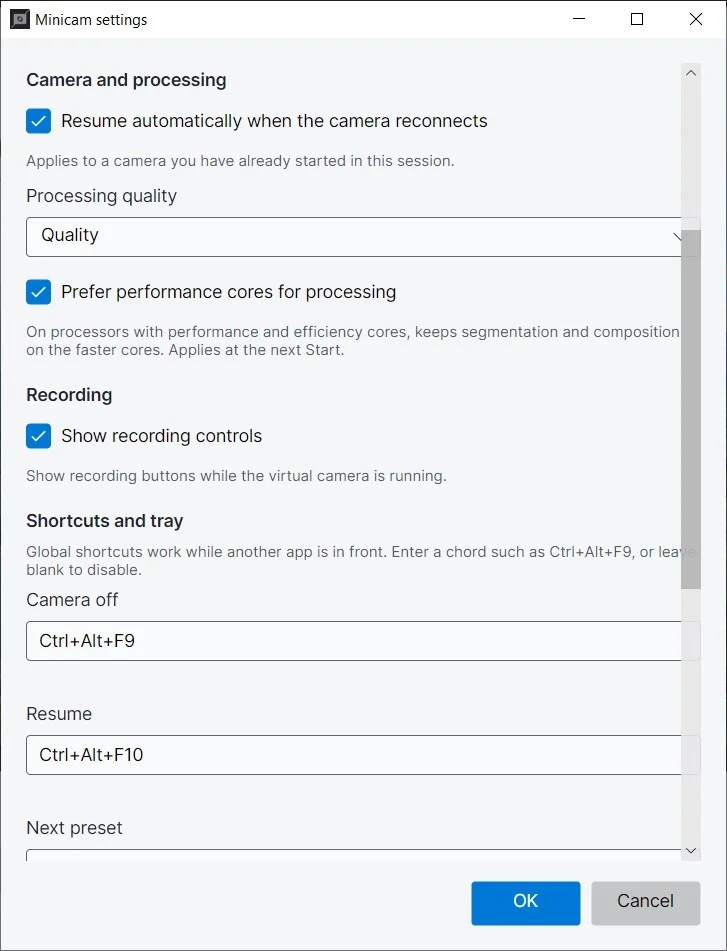
Nothing Running in the Background
When You Close It, It Is Closed
Virtual camera software has a habit of installing itself as a permanent resident: a service that starts with Windows, an updater that phones home, a tray icon that never leaves. MiniCam does none of that. There is no service, no auto-start entry and no updater. The only thing that persists is the camera registration Windows needs in order to list the device, and the uninstaller removes it.
- No Windows service and no scheduled task
- No auto-start: MiniCam runs only when you launch it
- No updater and no background process checking for versions
- Camera registration happens once, during installation
- Uninstall removes the registration and leaves your settings for you to delete
Private by Design
Your Camera Picture Stays on Your PC
MiniCam contains no networking code. There is no account to create, no activation server, no telemetry upload and no update check. Processing happens on your own machine, and only the finished picture ever reaches the preview or the virtual camera. If something fails mid-call, the output switches to a CAMERA OFF card rather than exposing the unprocessed room. Camera off does what it says: the webcam is released and its light goes out.
- Fully offline: no account, no server, no telemetry
- Raw webcam frames never reach the preview or any application
- Camera off releases the webcam; Resume takes it back
- Failures show a CAMERA OFF card instead of your room
- Logs contain metadata only, never images or frames
Fast on Ordinary Hardware
Smooth on Ordinary Hardware
Person detection runs on the GPU through DirectML, and an integrated GPU is enough. If there is no usable GPU, MiniCam switches to the CPU on its own. The default output is 1280 x 720 at 30 frames per second, with 1080p available when your webcam and PC can sustain it. A built-in benchmark measures what your machine actually delivers and recommends a mode, without changing anything until you say so.
- GPU inference through DirectML, with automatic CPU fallback
- 720p at 30 fps by default, 1080p when the hardware allows
- Benchmark that measures real throughput and latency on your PC
- Quality and Lower tiers to trade accuracy for speed on weaker machines
- Crop, brightness and contrast adjustments applied to the output
- Pick which GPU does the work on machines with more than one
And More
Record to MP4
Save the processed output to a video file with a countdown and pause. Later, use that recording as your camera feed.
Framing Controls
Drag a crop rectangle over the preview to reframe the shot, and adjust brightness and contrast for a dim room.
Two Camera Backends
A DirectShow camera for every Windows 10 and 11 app, plus a Media Foundation camera on Windows 11 for Store apps that only list those.
Mirror Where It Matters
Mirror the preview so it feels like a mirror to you, without mirroring the text on the whiteboard behind you for everyone else. Or mirror both.
Self-Contained Installer
One MSI with the .NET runtime included. Nothing to download first, nothing to keep updated separately.
Honest Error Messages
When the camera is busy, missing or blocked by Windows privacy settings, the banner says exactly that and offers the fix.
Frequently Asked Questions
Get MiniCam Today
A free virtual camera that respects your PC and your privacy. No subscription, no account, no watermark.
Download for Windows
v1.0.0 84 MB Windows 10, Windows 11
What the installer does
Installs MiniCam with the .NET runtime included, so there is nothing to download first. It asks for administrator permission once, to register the virtual camera with Windows; after that MiniCam runs as a normal user. Uninstalling removes the camera registration and leaves your settings under your profile for you to delete if you wish.
What it never does
It never installs a service, never adds itself to start-up, never runs an updater and never opens a network connection. There is no account, no activation and no telemetry. When the window is closed, MiniCam is not running, and the next version arrives only when you choose to install it.