See the Vulnerable and Overdue Dependencies of All Your .NET and Node.js Repositories
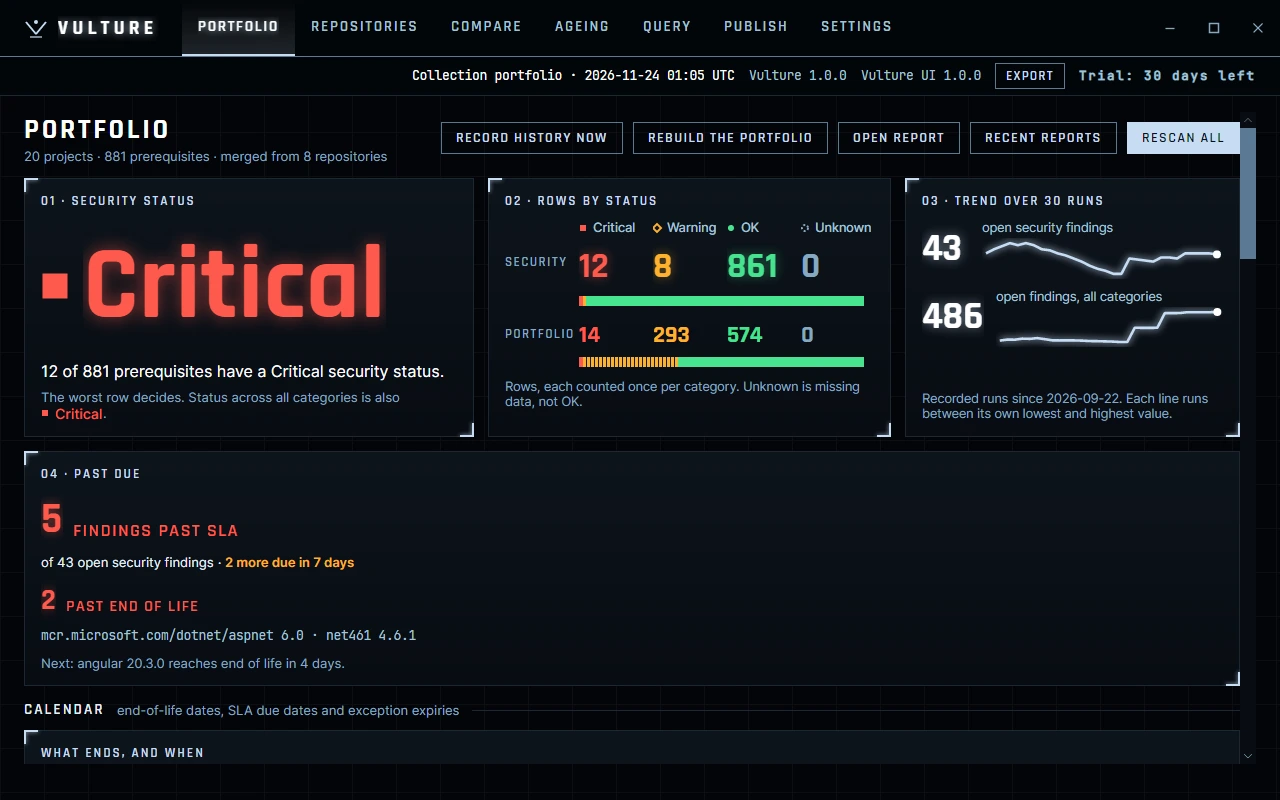
Vulture is a security calendar for .NET and Node.js teams. It reads the NuGet and npm packages, .NET versions and base images of your repositories and shows what is at risk, since when, and what to fix first. $10, paid once, covers your whole company. The first 30 days are free.
Version 1.0.0 - 49.2 MB - Windows 10, Windows 11 and Windows Server (x64) - no registration
What is Vulture?
Security upkeep loses its place in the backlog without anyone deciding that it should. A dependency upgrade has no ticket and no date, so in sprint planning it gives way to feature work. Meanwhile the list grows while nobody touches the code: a vulnerability is published for a package you shipped years ago, a .NET version reaches the end of its support, a base image stops receiving patches. Then one of them makes the news, or a customer writes to ask whether you are affected, and the answer is needed the same day, for every repository you maintain. Any of these gaps, left open, can become an incident, a failed audit or a lost contract.
Vulture is a security calendar for the dependencies of all your .NET and Node.js repositories. Instead of checking one repository at a time, when somebody remembers, you add the folders of your repositories and Vulture reads what they depend on: NuGet and npm packages, including the ones other packages pull in, the .NET version each project targets, the base images in your Dockerfiles, and the JavaScript libraries somebody once committed as files. Each of them is rated Critical, Warning, OK or Unknown, with the reasons. Each open problem carries its dates: when it was first seen, how many days it has been open against your deadline, and when support ends. Beside each problem is what to do about it, and for the whole portfolio, the upgrades that clear the most findings.
It comes as two programs in one installer. Vulture UI is the desktop application where you add repositories, scan them and read the result. The command-line tool runs the same scan as a step in a build pipeline. Both run on your own machines, with no account. In the application you will meet the word "prerequisite": it is Vulture's name for anything a repository depends on, whether a package, a runtime, an SDK or a base image. What Vulture gives you is the picture, the dates and the next step. Making the upgrade is still your team's work.
See Every Repository on One Screen
Checking one repository at a time tells you about the repository you opened. It says nothing about the others: the service nobody has touched for years, the web site still on .NET Framework, the jQuery file somebody committed and forgot. Vulture reads all of them into one portfolio, and it reads the parts that appear on nobody's list.
What Vulture Reads
NuGet packages
Every package of every project, including the ones other packages pull in. For an indirect package Vulture names the direct dependency that brings it in.
.NET versions
The SDK, runtime and framework version each project targets, with the date its support ends. C#, Visual Basic and F# projects alike.
.NET Framework projects
Older projects that keep their packages in packages.config, and ASP.NET Web Site folders that have no project file at all.
Node.js projects
The packages of your Node.js projects on npm, yarn or pnpm, and the support date of the package manager itself.
Container base images
The images named in your Dockerfiles and compose files: whether each has reached its end of life, and whether it uses a moving tag such as latest. Vulture reads the file and never pulls an image.
JavaScript committed as files
Libraries that were copied into the repository, loaded from a CDN in your page markup or listed in libman.json. Vulture recognises 11 of them, among them jQuery, Bootstrap, AngularJS and Moment.
It works on a repository as it is. There is nothing to configure in it first, and Vulture adds no files of its own to it.
Where Do We Use X
Answer "Are We Affected?" for Every Repository at Once
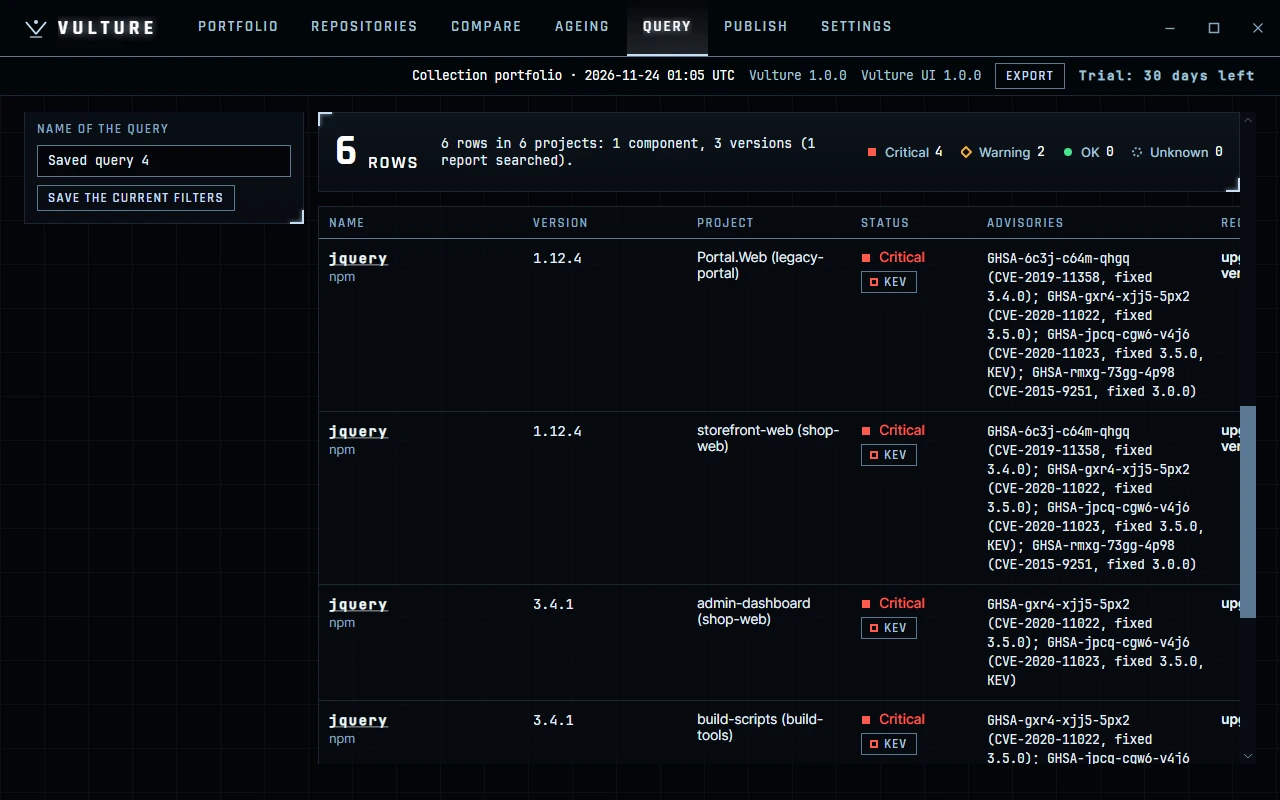
The day a vulnerability makes the news, or a customer asks whether you are affected, the question is always the same: where do we use this package, and at which versions. Vulture answers it from the scans it already has, across every repository, without scanning again and without a network connection. Search by package name, version range or CVE number. The result includes the copies that are in no package list, with the file each one was found in, and the recommended upgrade for each.
- Search by name with wildcards, version range, advisory or CVE number, and status
- Answered from the reports you already have, with no new scan and no network
- Finds libraries committed as files or loaded from a CDN, and names the file
- Shows the status and the recommended upgrade for every match
- Save a query and run it again after the next scan
Every Problem Has a Date
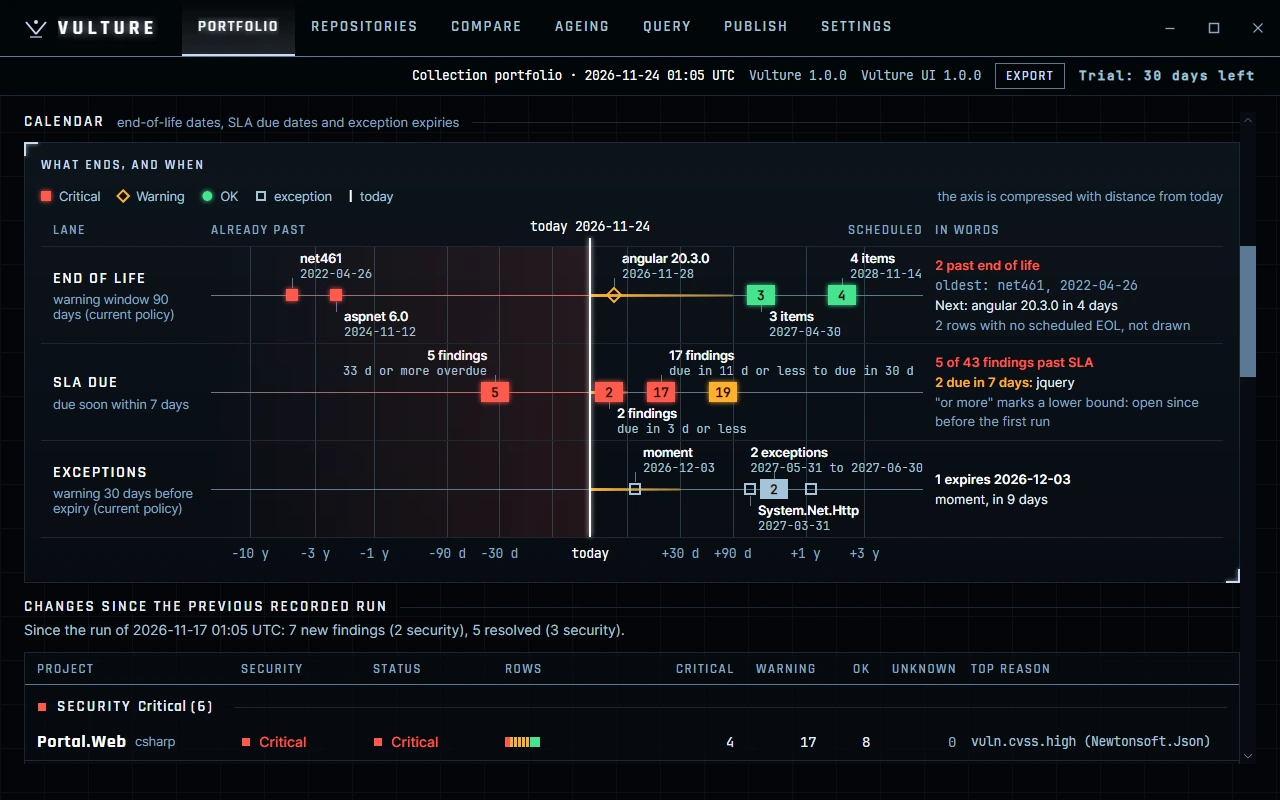
A warning without a date can wait, and so it does. Vulture gives each open problem its dates. End of support is a finding in its own right: a .NET version, a base image or a package manager that is past its end of life gets a status and a place in the list, just as a vulnerable package does. One that will reach it soon shows on the Portfolio's calendar with its date, beside the deadlines of open findings and the accepted risks that are about to expire.
Age and Deadline
How Long Each Problem Has Been Open
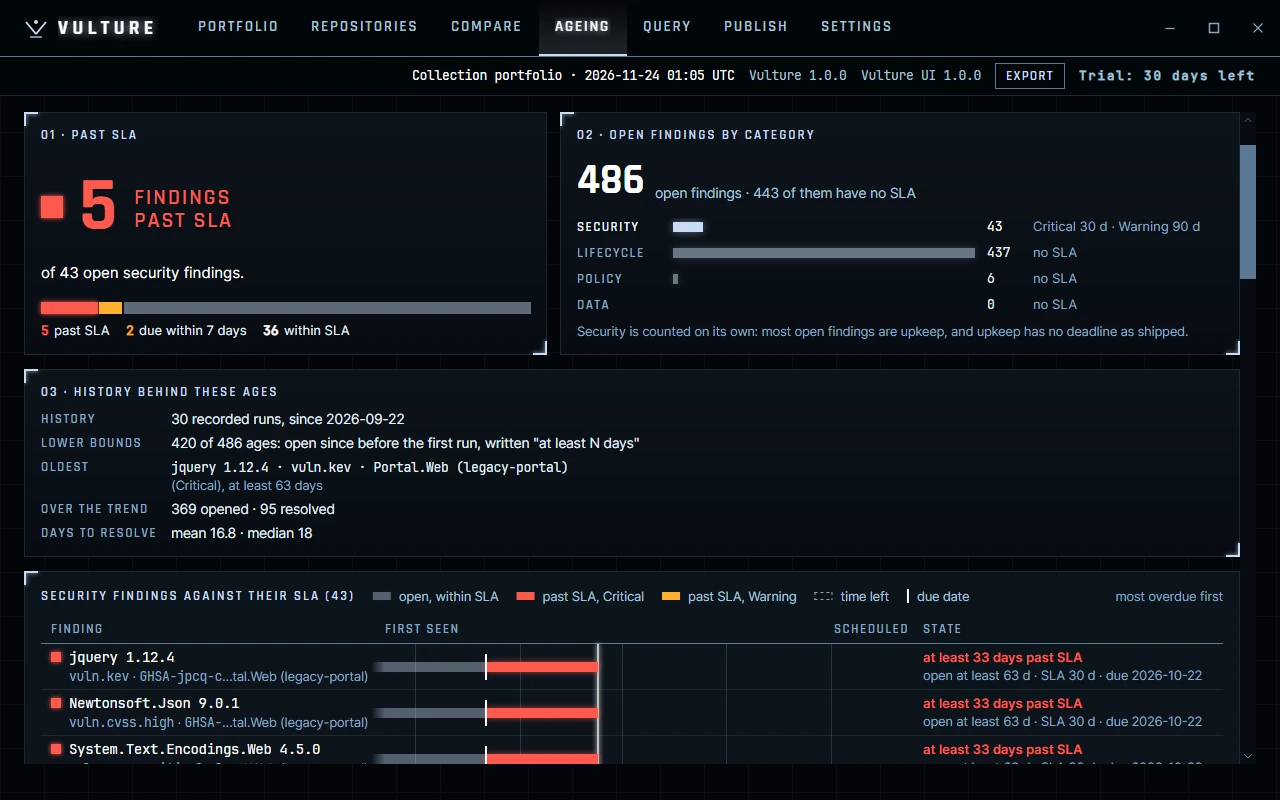
Vulture remembers every scan you record. For each open finding it knows when it was first seen and how many days it has been open, and for security findings it measures that against a deadline. As shipped, a Critical security finding is due within 14 days and a Warning within 60. Both numbers are yours to change, and upkeep findings such as an outdated package get a deadline when you give them one. The Ageing screen puts what is overdue at the top, followed by what is due soon.
- First seen, days open and due date for each open security finding
- What is past its deadline, and what is due soon
- The trend over your recorded scans: findings open, opened and resolved
- Mean and median days to resolve
- Save the ageing report as a Markdown document for the people who do not open the application
Since the Last Scan
What Is New, What Was Fixed, What Changed
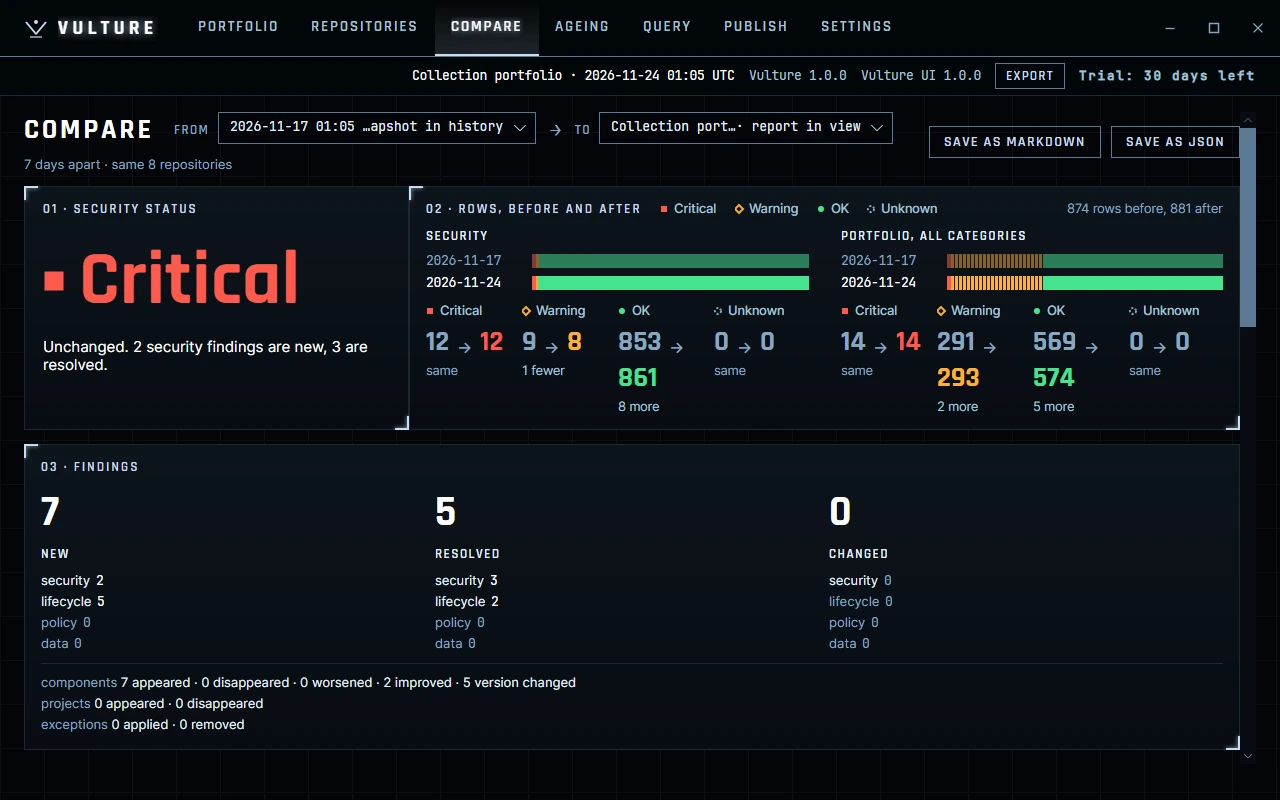
Once you have the full picture, the question each week is what changed. Compare puts two scans side by side: the findings that are new, the ones that were resolved and the ones that changed, such as an end-of-life date that has now passed. A finding that could not be checked this time is listed as no longer measured. It is never counted as resolved.
- New, resolved and changed findings between any two recorded scans
- Dependencies that appeared, disappeared, got worse or got better
- "No longer measured" is kept apart from "resolved"
- Save the comparison as a Markdown document
Know What to Fix First
A long list of findings is not a plan. One package used in several projects can account for many of them, so the useful question is which few upgrades clear the most. Vulture answers that, and for each single finding it names the fix.
Recommended Actions
The Upgrades That Clear the Most Findings
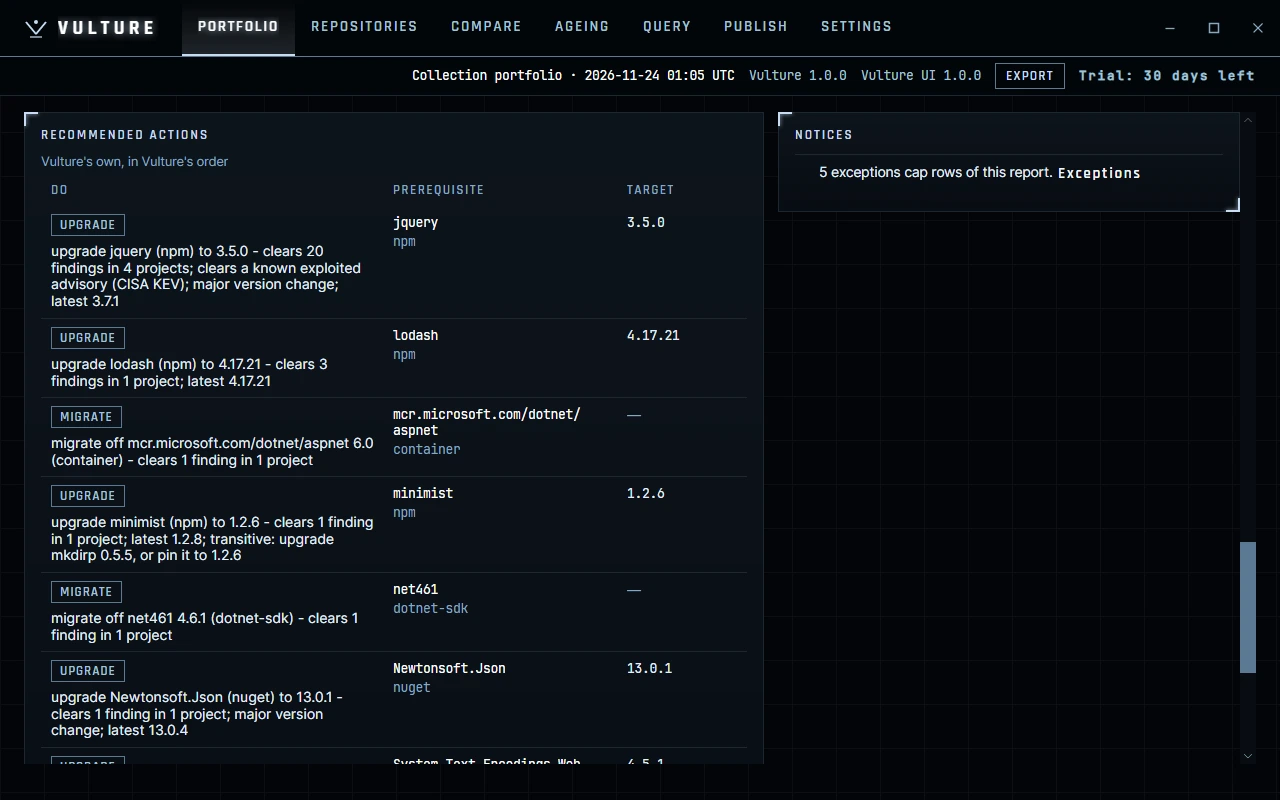
Vulture works out which upgrades and removals clear the most findings and puts them in that order: across all repositories on the Portfolio, and for one project on its own screen. Each line names the package, the version to move to and what it clears. Where an upgrade is not the answer, the line says what is: replace a deprecated package with its successor, remove one, move off a framework that has reached its end of life, or bind an internal package to your private source.
- Upgrades and removals ranked by how many findings they clear, across all projects
- The recommended actions for a single project on that project's screen
- Says so when no fix exists yet
- Names replacements, removals and migrations where an upgrade will not do
- The same list is part of the Markdown calendar, for a dashboard or a wiki
The Fix for Each Dependency
For Each Finding, the Reason and the Fix
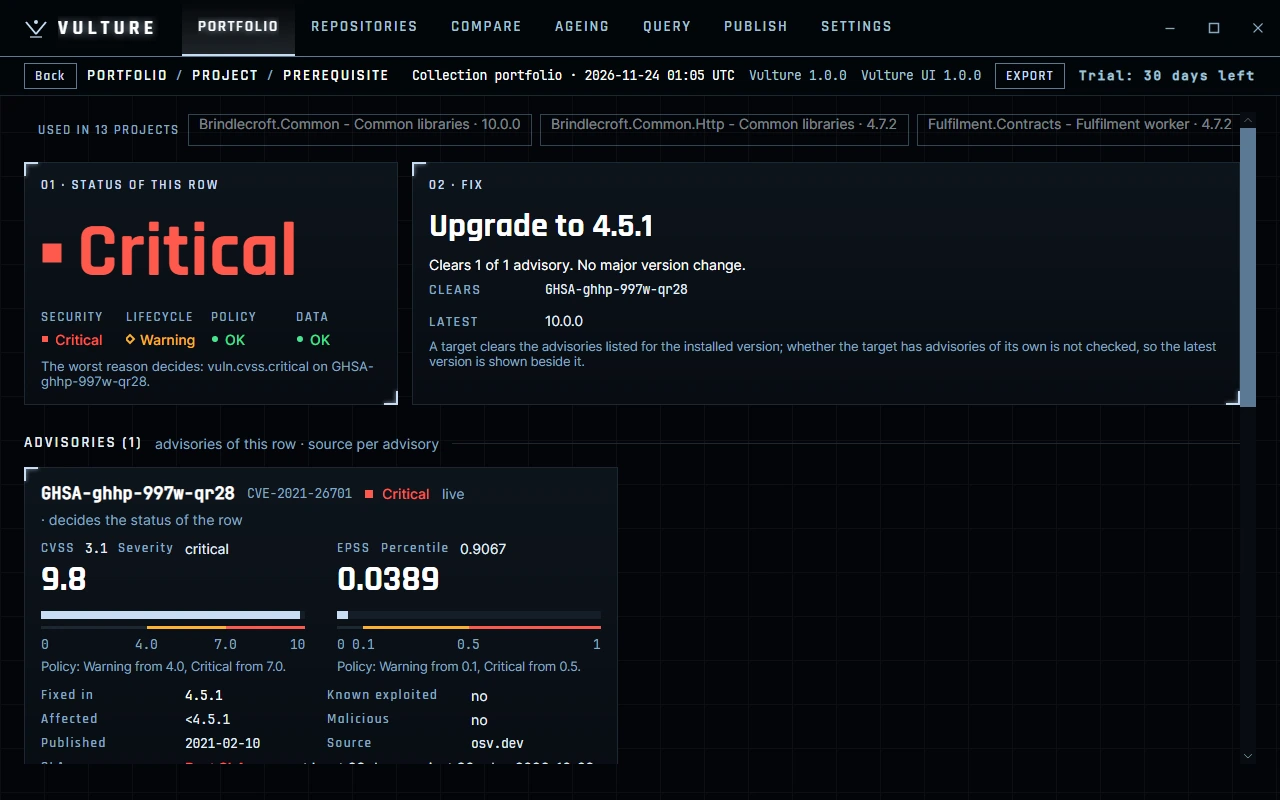
Open any dependency and Vulture shows why it has its status and what to do about it: the version to upgrade to, which advisories that clears and which it leaves, and whether the upgrade crosses a major version. For a package you never added yourself, it names the direct dependency that brings it in, which is the one to upgrade. Each advisory is listed with its severity score, whether it is known to be exploited and how likely exploitation is.
- Target version, the advisories it clears and those that remain
- A clear mark when the upgrade crosses a major version
- For an indirect package: the direct dependency that brings it in
- Per advisory: severity score, known-exploited mark and likelihood of exploitation
- The recommendation clears the advisories of the version you have; the latest version is shown beside it
If You Answer for Security and Compliance
When somebody asks why a package is Critical, or why a known vulnerability is still open, you need to show a rule and a record. Vulture keeps both. The whole policy is one file that belongs to you: which severity score makes a finding Critical, how early an approaching end-of-life date starts to warn, how many days a finding may stay open. The application presents it as a form, explains each value and checks the file before it saves. A risk you decide to accept is recorded with its scope, its reason, the person who approved it and the date it expires. It stays visible in every report, and Vulture warns before it runs out.
- Rates known vulnerabilities by CVSS score (versions 3 and 4), vulnerabilities known to be exploited (CISA KEV), the likelihood of exploitation (EPSS) and packages reported as malicious
- Rates the end of life of .NET versions, SDKs, package managers and base images, and packages that are deprecated, abandoned or withdrawn
- Checks how packages are fetched and built: floating versions, missing lock files, plain-HTTP package sources, NuGet audit switched off, compiler security analyzers switched off
- Flags an internal package name that is free on the public registry while your configuration could still fetch it from there, and recommends binding it to your private source
- Deadlines per severity, with the lists of what is past due and what is due soon
- Exports a CycloneDX 1.7 SBOM, with VEX statements for the risks you accepted
If You Run the Build Pipelines
The command-line tool is installed together with the application, and the application itself works by running it, so a pipeline step gets the same scan and the same rating as the screen. As shipped it only reports: a scan that finds Critical problems still exits with 0, and a build fails only on a gate you have armed.
- Arm a gate on any Critical, on a Critical security finding, on a Critical that is new since a baseline, on a newly known-exploited vulnerability, on a missed deadline or on a banned package
- Exit codes with one meaning each: 0 done, 1 could not run, 3 a gate you armed, 4 no licence. An outage of a lookup service never changes the exit code
- Runs on the Windows build agents you host: install the same MSI and call "C:\Program Files\Vulture\Vulture.Cli.exe" by its full path
- One import covers every account on the machine, the agent's service account included: Vulture.Cli.exe license import <file> --machine, from an elevated prompt
- Without a licence after the 30 days the tool exits with code 4 and one line that says where to buy, so a step fails visibly and never passes without a scan
- Writes a Markdown calendar that an Azure DevOps dashboard widget or a wiki page can show
- Files Azure DevOps Bugs for Critical security findings: one per package per project, updated and never duplicated, at most 20 new per run, and it never changes the state of a work item
- Posts one summary per run to a Slack channel: what is Critical, what is past its deadline, what is new and what was resolved
- Slack and Azure DevOps stay off until you set them up, and a dry run shows what would be sent before anything is
What Vulture Sends, and Where
Vulture runs on your machines and has no account. To rate a dependency it has to look it up, so a scan sends names and versions to public services. This is everything Vulture itself contacts.
| When | Contacts | What is sent |
|---|---|---|
| Every scan, unless you scan offline | OSV.dev | Names and versions of the packages it found, to look up known vulnerabilities |
| Every scan, unless you scan offline | endoflife.date | Names and versions of runtimes, SDKs, package managers and base images, to look up support dates |
| Every scan, unless you scan offline | nuget.org and registry.npmjs.org | The name of every package, your internal ones included, to look up its releases and whether the name is publicly registered |
| Every scan, unless you scan offline | The CISA Known Exploited Vulnerabilities catalog and FIRST EPSS | CVE numbers only |
| When you publish, and only if you set it up | Slack | The summary of the run |
| When you publish, and only if you set it up | Your Azure DevOps organisation | The Bugs it files and updates. While you set this up, it also reads the list of work item fields |
| Licence and trial | Nothing | Checked on the machine. There is no activation server |
| Telemetry, crash reports, update checks | Nothing | Vulture has none of them |
Vulture needs nothing but its own installer: it reads your repositories as they are. For current .NET projects it gets the full package list from the .NET SDK that already builds them, which uses the package sources those projects already use. A scan run offline makes none of the lookups above: Vulture then works from what earlier lookups left in its cache on your machine, and whatever it cannot determine reads Unknown. Reports, history and settings stay in your Windows user profile, and the Slack and Azure DevOps credentials are kept in a file that only your Windows account can read.
$10 for Your Whole Company
One-time payment
$10
Per customer, not per developer and not per machine. One licence covers every computer, server and build agent you own or operate.
The first 30 days are free.
-
One licence covers the whole company
A licence is issued to a person or a company, never to a machine or a seat. It covers your employees and contractors on every computer, server and build agent the company owns, leases or has operated for it. The price stays $10.
-
Pay once, keep it
The licence is perpetual. There is no subscription and nothing to renew, and updates to version 1 are included.
-
No hardware lock, no activation server
The licence is a file you import once per user, or once per machine for build agents. It is checked on the machine itself, so replacing a laptop or rebuilding an agent takes nothing more than importing the same file again.
-
30 days free with everything switched on
Download it and use every feature for 30 days, without registering and without a card. That is long enough to scan all your repositories, record a few weeks of history and see your own deadlines before you pay anything.
-
14 days to change your mind
If you bought a licence and it is not for you, ask for a full refund within 14 days of the purchase.
-
Nothing is lost when the 30 days end
After 30 days both programs stop until a licence is imported. Your reports, history and settings stay where they are, and Vulture carries on with them as soon as the licence is in.
Full terms are in the end user licence agreement, which the installer also shows before installing.
Frequently Asked Questions
Get Vulture Today
$10, once, covers your whole company on every machine. The first 30 days are free, with every feature and no registration.
Download for Windows
v1.0.0 49.2 MB Windows 10, Windows 11 and Windows Server (x64)
The installer is not code-signed, so Windows SmartScreen may show a warning before it runs. To check the file first, compare its SHA-256 with this one (in PowerShell: Get-FileHash VultureSetup.msi): 42599b99f22673025b09f74b1b1c9222474ef3cce4034c5ed123d047fb04f28e
What the installer does
It is one MSI of 49.2 MB with everything Vulture needs inside, so there is no .NET runtime to install first. It asks for administrator rights, shows the licence agreement, and installs Vulture UI and the command-line tool into C:\Program Files\Vulture, with a Start Menu shortcut named Vulture. Your reports, history, settings and licence are kept outside that folder, so installing a newer version or uninstalling leaves them in place. Then start Vulture, add the folders of your repositories and scan.
Requirements
Windows 10, Windows 11 or Windows Server, 64-bit (x64). Nothing else has to be installed to scan: Vulture reads your repositories as they are. If they hold .NET projects, scan them on a machine that has the .NET SDK they build with, and Vulture uses it to list every NuGet package. The first scan needs an internet connection for the lookups.